
Cloud AI APIs are getting expensive. A developer running Claude or GPT-4o for code reviews can rack up $50–$200/month. For privacy-sensitive work, every API call means your data leaves your machine. And when the internet drops, your AI-assisted workflow stops dead.
Running models locally fixes all three. The catch? Most laptops can't do it well. The single deciding factor is memory — specifically, how much fast VRAM or unified memory your machine has. Get that wrong and you're waiting 30 seconds per sentence.
- Best Windows (Value): Lenovo LOQ 15 — RTX 4060 (8GB VRAM), Cold Front 5.0 thermals
- Best Budget AI/Windows: Acer Nitro V 16 AI — RTX 4060, 16" 16:10 display, under $900
- Best Apple Silicon: MacBook Pro M5 — 24GB+ unified memory, fastest Mac inference
- Avoid for LLMs: Copilot+ NPU laptops — only ~14 tokens/sec generation speed
What Actually Determines Local AI Performance
Forget CPU speed and clock rates. Local LLMs are almost entirely bottlenecked by two things: memory capacity (can the model fit?) and memory bandwidth (how fast can it generate text?).
With 4-bit quantization — the 2026 standard that cuts model size ~75% with minimal quality loss — a 7B model needs about 4–5GB of fast memory. A 14B model needs ~8GB. If your GPU/unified memory can't hold the full model, it starts "spilling" to slow system RAM, dropping from 40+ tokens/second to 2–5 tokens/second. That's the difference between a fluid conversation and watching paint dry.
The rule of thumb: For Windows laptops, you need RTX 4060 (8GB VRAM) as the absolute minimum. For Macs, 16GB unified memory is the minimum. The RTX 4050 with 6GB VRAM will constantly hit its ceiling with modern models.
Best Windows Laptops Under $1,000
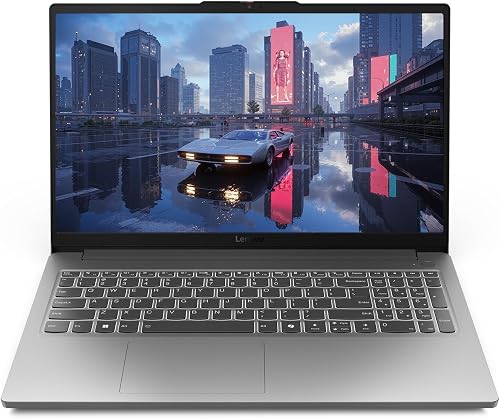
Lenovo LOQ 15
The LOQ 15 wins on sustained thermal performance. Its Cold Front 5.0 dual-fan system (inherited from Lenovo's premium Legion line) keeps the GPU at 80–86°C under continuous load — no throttling during long-running agent tasks or document batch processing.
The keyboard is also the best in class at this price point — 1.5mm travel with a numpad, great for typing code alongside a local coding assistant like Qwen 2.5 Coder. The trade-off: the 60Wh battery drains in under an hour under AI workloads. This is a desk machine.
Affiliate link — I may earn a small commission at no extra cost to you.

Acer Nitro V 16 AI (RTX 4060)
The Nitro V 16 has the best display of the three Windows picks: a 16" 16:10 panel at 165Hz. The extra vertical real estate is genuinely useful when reading long AI-generated outputs in LM Studio or Open WebUI. It also carries the RTX 4060 (8GB VRAM) that handles 7B–8B models at 40+ tokens/sec.
The caveat: the slimmer chassis throttles the GPU under sustained load. For single queries and interactive AI chat it's excellent. For overnight batch processing of thousands of documents, the Lenovo LOQ 15 is the better choice.
Affiliate link — I may earn a small commission at no extra cost to you.
The Apple Silicon Pick
Apple's advantage isn't clock speed — it's architecture. On a Windows laptop, the GPU has its own separate VRAM. The moment a model exceeds that, it spills to slow system RAM across the PCIe bus. On an Apple Silicon Mac, the CPU, GPU, and Neural Engine all share the same high-bandwidth memory pool. This means a MacBook Pro M5 with 24GB unified memory effectively gives every process a 24GB "GPU" — something no Windows laptop under $2,000 matches.

MacBook Pro 14" M5
The MacBook Pro M5 is Apple's most powerful laptop chip, with memory bandwidth exceeding 300 GB/s on the M5 Pro/Max variants. Unlike any Windows laptop, you can configure it with 64GB or 128GB of unified memory — meaning you can run quantized 70B models entirely in-memory at interactive speeds. For serious local AI work, nothing under $3,000 comes close.
The base 24GB M5 config is the entry point worth considering if you're serious about running 30B+ models locally without GPU offloading. It handles Llama 3.3 70B (Q4) in memory with 64GB+ configs.
Affiliate link — I may earn a small commission at no extra cost to you.
NPU Laptops: The Hard Truth
You've seen the ads — Snapdragon X Elite, Intel Lunar Lake, "AI PCs," 40–45 TOPS NPUs. For local LLMs, the reality is more complicated.
NPUs excel at low-power, fixed background tasks: live transcription, webcam effects, noise cancellation, Copilot+ features. For actual LLM text generation, the NPU bottlenecks hard. Tests on Snapdragon X Elite show the Hexagon NPU processing input prompts at a blazing 786 tokens/second — but generating output text at only 14 tokens/second.
Quick Comparison — All 3 Picks
| Machine | Price | Key Memory | Max Model | Tokens/sec (7B) | Buy |
|---|---|---|---|---|---|
| Lenovo LOQ 15 | $650 | 8GB VRAM (GDDR6) | ~8B natively | 35–55 | Amazon |
| Acer Nitro V 16 AI | $899 | 8GB VRAM (GDDR6) | ~8B natively | 35–50 | Amazon |
| MacBook Pro M5 | $2,000 | 24–128GB Unified (300+ GB/s) | 70B+ (with 64GB+) | 60–100+ | Amazon |
| Copilot+ NPU Laptop | $800–$1,000 | 16GB LPDDR5 | ~7B (slow) | ~14 | — |
Two Tools That Make Local AI Effortless
In 2026, running a local LLM no longer requires setting up Python environments or manually downloading model weights. Two tools handle everything:
- Ollama — Run
ollama run llama3.1:8band it automatically downloads, quantizes, and runs the model using the best available backend (CUDA for Nvidia, Metal/MLX for Apple, CPU as fallback). Exposes an OpenAI-compatible API so you can connect VS Code's Continue extension or Open WebUI with no extra config. - LM Studio — A GUI app for non-developers. Browse the Hugging Face model library, download GGUF models, and chat — no terminal needed. Supports Windows, Mac, and Linux.
Recommended starting models: Llama 3.1 8B (general purpose), Qwen 2.5 Coder 7B (coding), Mistral 7B (fast and capable). All run well on both 8GB VRAM Windows machines and 16GB unified memory Macs.